Laptops

Gaming Laptop Buying Guide: Find the Best One for You

Gaming Laptop Buying Guide: Find the Best One for You

The eternal question of gaming laptop or gaming desktop has a notorious answer: it depends. For some situations a gaming laptop is the better machine, for some the opposite. Only you and your budget can settle it - but the specification tells you where you land.

What actually decides it

The graphics card matters more than the processor. In a laptop the GPU runs at a power limit rather than a full desktop power budget, and that limit - not the chip generation - is what sets the frame rate. A machine with an RTX 5080 at up to 175W and a full-power CPU will beat one with a faster processor and a throttled GPU every time. Two other things decide the category: the display (a high-refresh panel is wasted on a weak GPU, and a high-resolution panel is wasted on a weak one), and the chassis - a 3 kg machine is a desktop replacement that happens to have a hinge, not a portable one.

Our picks

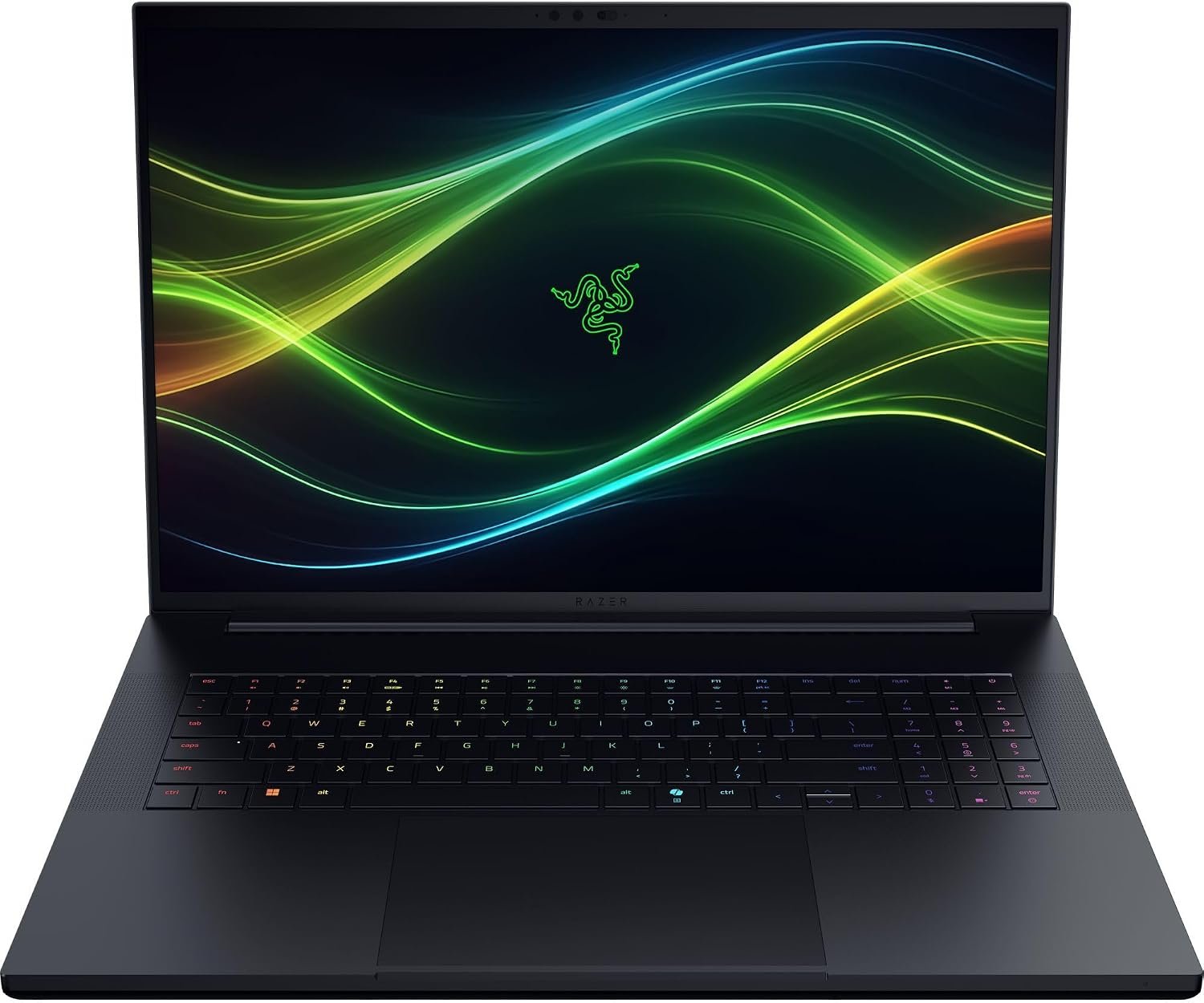
  • \1. The desktop replacement of the group: an RTX 5090 Laptop GPU at up to 175W with 24 GB of VRAM, an Intel Core Ultra 9 290HX Plus with 24 cores, 64 GB of DDR5-6400 memory, a 2 TB Samsung 990 PRO NVMe drive and Thunderbolt 5. The 18-inch 16:10 dual-mode panel runs UHD+ at 240Hz or FHD+ at 440Hz on the same screen. At 3.2 kg it does not travel - and it is not trying to.
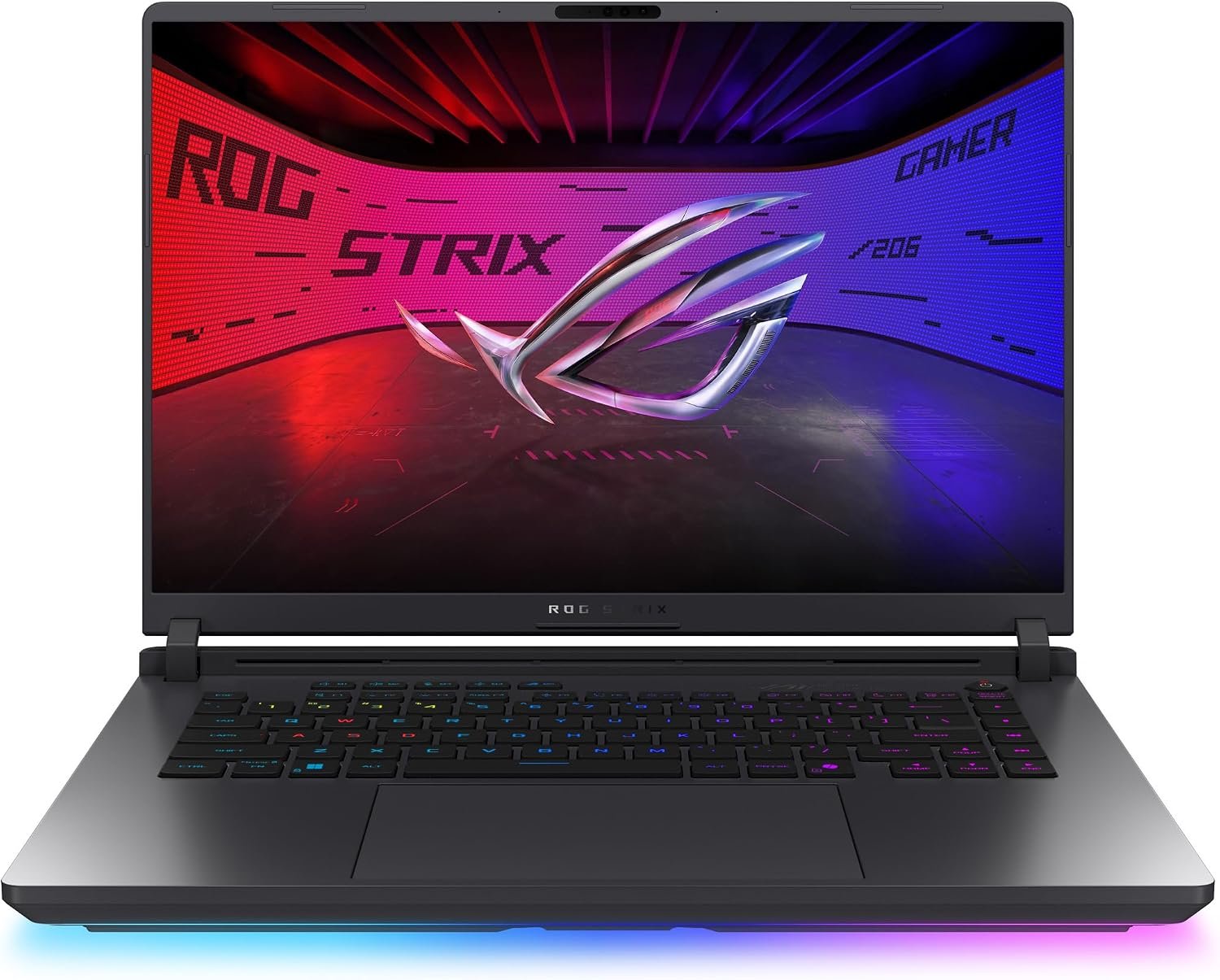
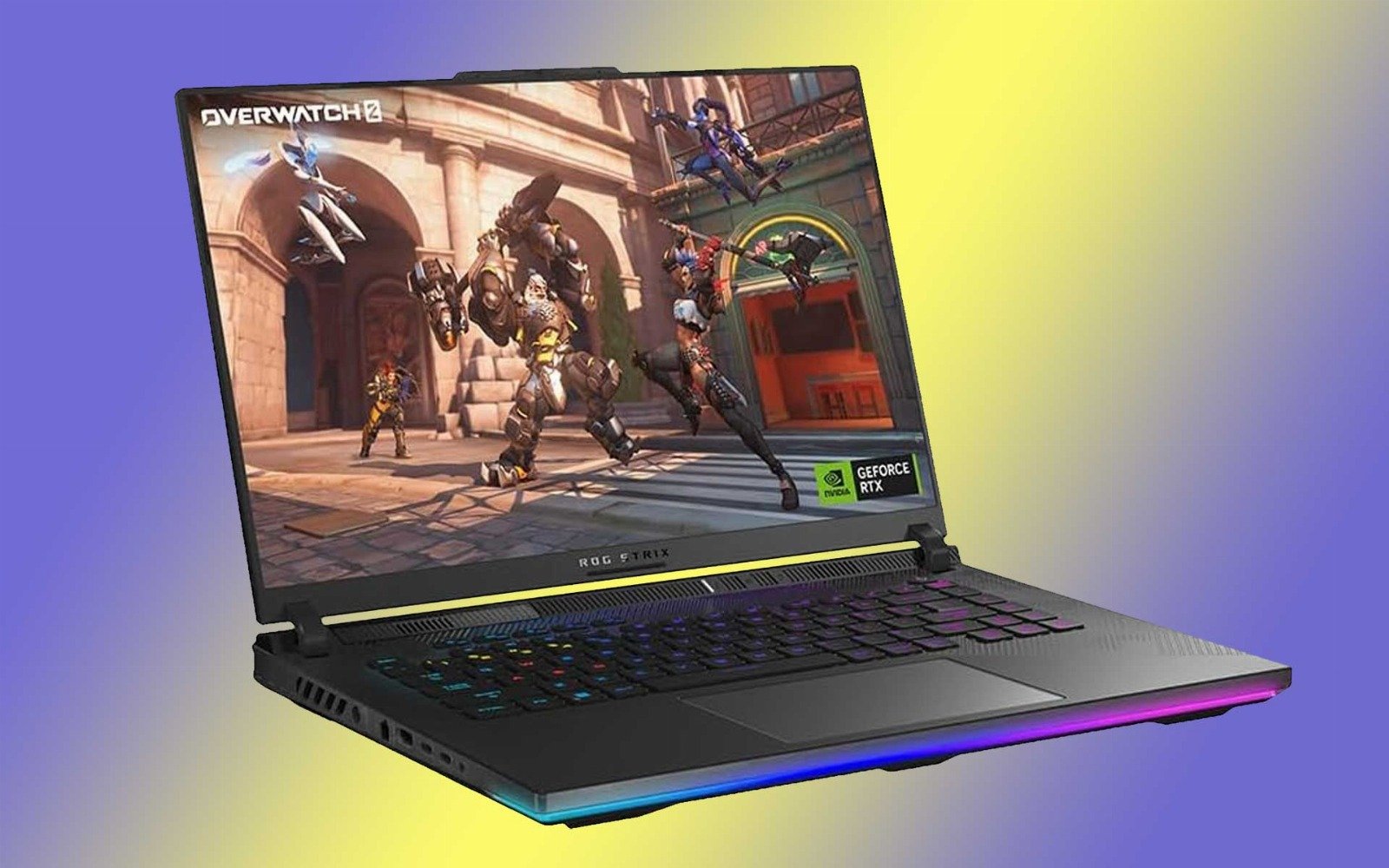
  • \1. The mid-range ROG: the same Core Ultra 9 290HX Plus with an RTX 5080, on a 16-inch 2.5K 240Hz ROG Nebula HDR panel with a 3 ms response. An end-to-end vapour chamber and tri-fan cooling let it hold its boost clocks under load, and both RAM and SSD are user-upgradeable.
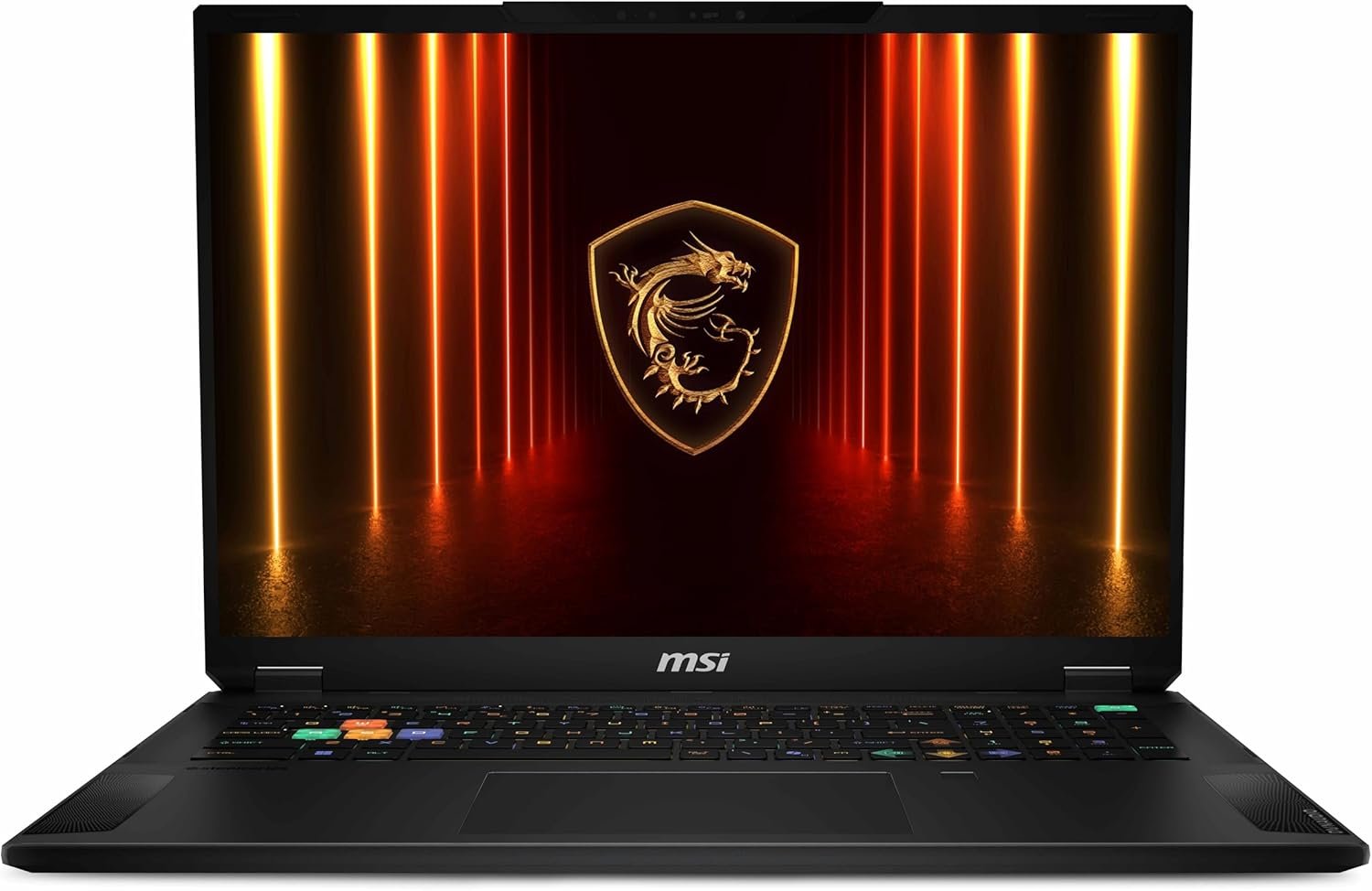
  • \1. The value route to the same tier: an RTX 5090 in a 2.9 kg chassis with an 18-inch 4K Mini-LED panel rated for HDR1000, 64 GB of memory, and a Ryzen AI processor with an NPU that offloads background work so the GPU keeps more of the frame budget. The trade-off is Mini-LED bloom around very bright interface elements.
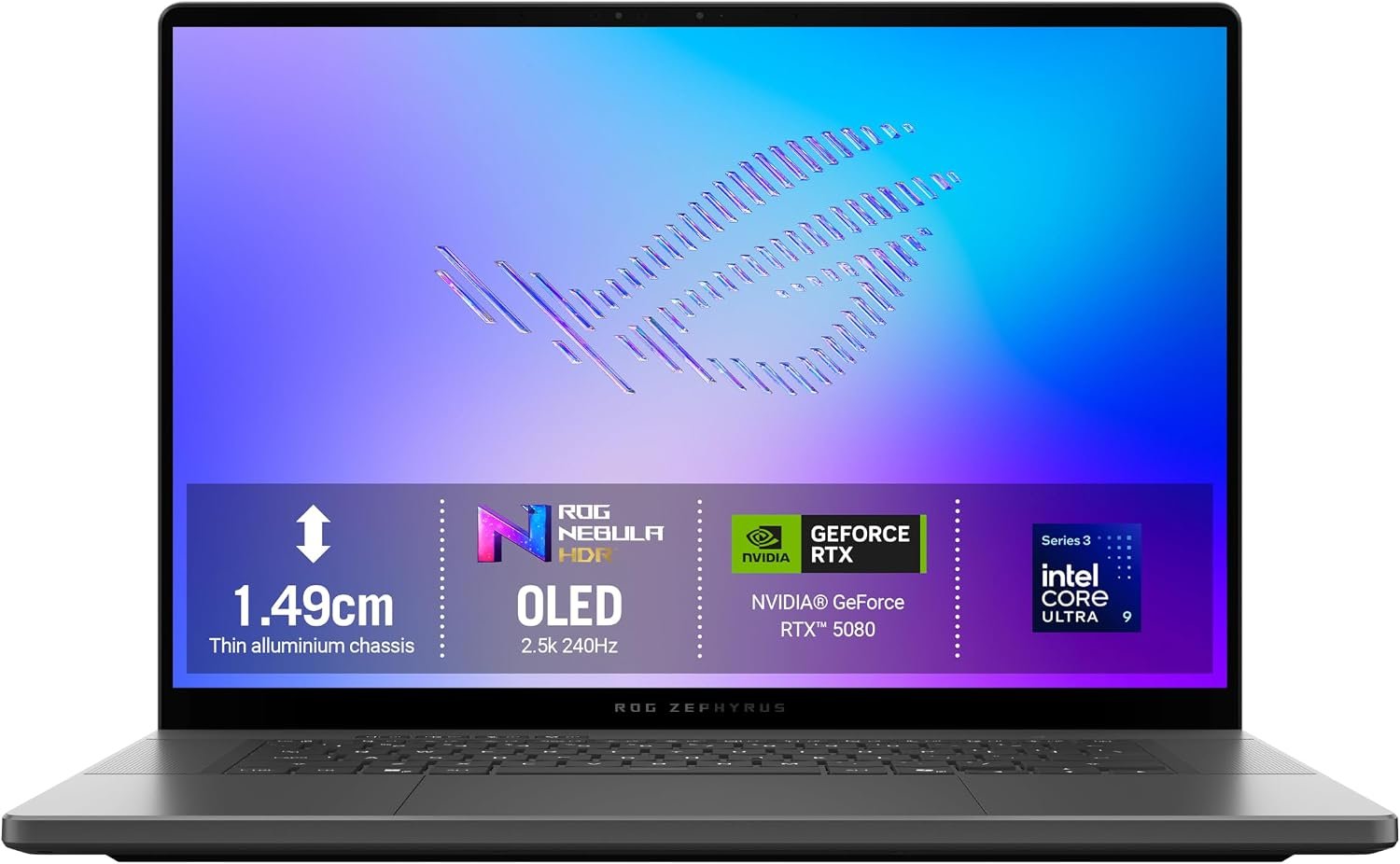
  • \1. The thin-and-light end of the range and the only machine here you can carry to a LAN: a 1.49 cm machined chassis under 2 kg, a 16-inch 2.5K OLED panel rated for DisplayHDR True Black 1000 at 240Hz, an RTX 5080 and a full-power CPU option - with battery life as the weak point at this performance level.
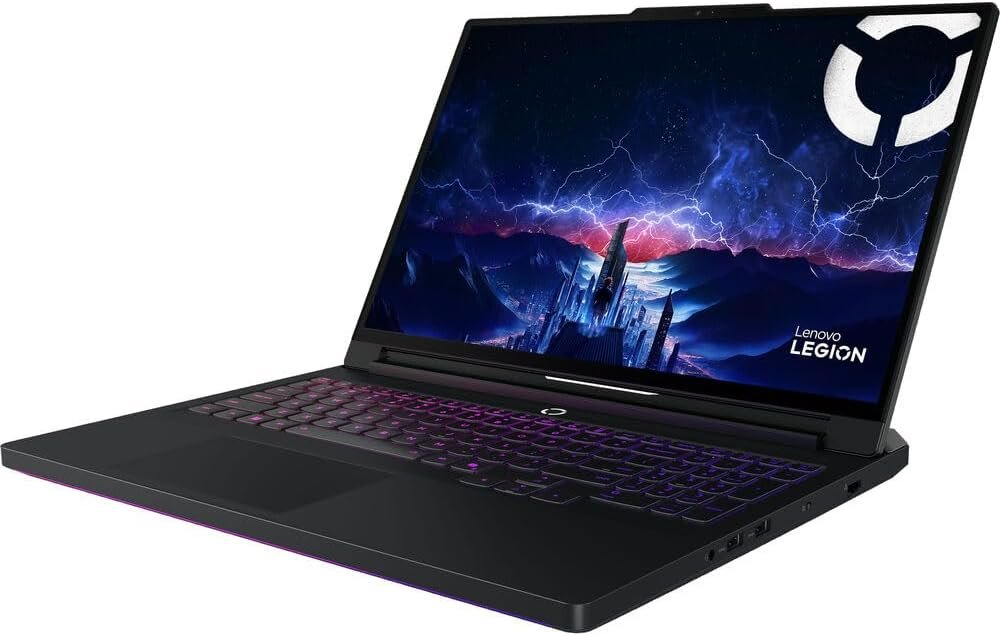
  • \1. The quiet, keyboard-first alternative: an RTX 5080 at up to 175W with an Intel Core Ultra 9 275HX, a 16-inch 2.6K OLED panel at 240Hz and 500 nits, and the best keyboard in the group. Heavier than the Zephyrus, and some configurations ship with soldered memory - check that before you buy.

Prices move daily - the card under each pick carries the current one, so trust the card rather than any figure quoted here.

How much will the gaming laptop cost?

The lower limit for a gaming laptop in 2026 is a lot higher than it used to be. The current generation of laptop graphics needs real power, and the machines that carry it start well above £2,000.

Under £1,500 - you are looking at a machine with an entry-level discrete card. It will run the games, but not at the settings you want, and the frame rate will be the limit rather than the game.

£1,500 - £2,500 - the mainstream zone. A current mid-range card in a 16-inch chassis, 1440p at 144Hz or better, and a 16 GB memory floor. This is the band we would shop in.

£2,500 - £4,000 - the performance zone. Upper-mid cards and the fast processors that pair with them, with 32 GB of memory and a 2 TB drive as standard. Ray tracing is comfortable here.

Over £4,000 - the flagship zone. A desktop-replacement class machine: the fastest laptop GPU, an 18-inch panel, and the thermals to hold the boost clocks. Buy it for the performance, not for the portability.

What makes a gaming laptop a gaming laptop?

Of course, you can also play simple games on a cheap laptop. Only notebooks with dedicated (more powerful) graphics cards deserve the label "gaming". Only on those can you run new, more graphically demanding games with better graphics settings in playable form.

Gaming laptop

Gaming laptops also often offer a more expressive design, colorful keyboard backlighting, or other lighting effects. More important, however, is better-dimensioned cooling that allows for longer-term loads, a display that can handle fast action, and possibly expandable memory or an SSD. 

What performance do I actually need?

You always want the highest performance in a gaming laptop. However, it is advisable to match the graphics card with the resolution of the display and the processor. In reality, the laptop's gaming performance is most influenced by the graphics card used, followed by the selected processor. A faster SSD or larger memory capacity will then improve the user experience.

You probably won't worry about endurance with a gaming laptop as much. Even the best laptops can't last more than two hours under full gaming load, but with modern processors, you can play a movie or browse the web for up to eight hours. If you have a laptop mainly for games, expect it to be permanently connected to a socket.

Of course, there are also heavy, non-portable notebooks with almost desktop-like performance, but of course, they aim at the super high price end.

Alienware 18

How much memory do I need?

The lowest sensible value for a gaming laptop is 16 GB, and a comfortable base is 32 GB. A memory capacity of 32 GB will be enough for demanding users, and only a few of the most demanding professionals really need even higher values.

Gaming laptops often allow for additional memory expansion using standard memory modules. In thin notebooks, however, the memory is mostly fixed on the motherboard without the possibility of changing it.

Laptop RAM

So, in general, ask for at least 16 GB and consider the possible 32 GB as a nice bonus, with which you will get a reasonable reserve. For a gaming laptop, 16 GB is enough comortably running almost any game.

You don't have to deal with memory technology.

If you see DDR4, LPDDR4X, or DDR5 in the memory capacity parameter overview, you don't need to pay much attention to it. Different memory technologies mainly look nice on paper to convince you that DDR5 is definitely better than DDR4, but you won't feel the real difference between them that much.

The latest DDR5 memories appear mainly in new laptops with current generations of Intel and AMD processors, but the increase in performance, thanks to the newer technology, is not so significant. Instead, the life of the entire computer will be extended, which is often due to a better processor, a more economical display, and other components.

Know your processors

What to buy in 2026

Read the list below as an explanation of the naming rather than as a shortlist. The generation that defined each name has moved on: in 2026 the current gaming laptop silicon is the Core Ultra family, the Ryzen 300 and Ryzen AI 300 series, and Apple M4 and M5. The letter at the end is the part that matters when you compare two machines - HX means a gaming part running at full power, HS means the same chip with a lower limit, and U is the economical notebook part.

The processors' labeling gives such a confused impression that the customer often gives up and chooses the higher number is better style. However, something useful can still be learned from the processor number.

Intel processors

In the case of Intel, we basically have two basic families of notebook processors: Intel Core and everything else. Celeron, Pentium, and simply everything else that does not have Core in the name are intended for the cheapest laptops, where the processor's performance will never be amazing. A laptop like this will work but don't ask for anything more demanding.

You will always see Intel Core processors in the configuration with a numerical designation and a letter at the end. For example:

Intel Core i7-13800H – this is a processor from Intel, with the designation Core of the more powerful i7 category. It is the 13th generation, the other three numbers may not be of interest to you, and the processor belongs to the more powerful H family.

The basic division presents Core i3 as the cheap and less powerful one, Core i5 as a reasonable base, and Core i7 as the better one for demanding tasks and games. For the extremists, there is the Core i9. In more expensive gaming notebooks, you can also come across the HX suffix, which is a slightly more powerful version of the H variant. In fact, Intel offers around eight different H variants of the 13th generation Core i5 processors.

We would recommend considering at least Core i5 and taking Core i7 as a better bonus. Core i3 doesn't even appear in gaming laptops. 

Intel CPU

Laptops with 13th generation Intel processors are currently on the market. The previous twelfth generation already brought a novelty in the form of additional energy-saving cores, which will significantly extend the endurance during normal office work or watching movies. Thanks to the overall larger number of cores, you will also appreciate higher performance, for example when rendering video or more demanding activities. 

However, for gaming, the intergenerational increase in processor performance may not be so important. On the contrary, thanks to the upcoming generation, the previous generation is very attractive in price. For the same price, a better graphics card makes more sense than a newer processor. You can now get older but still powerful laptops significantly cheaper.

So you want the highest possible generation number, but if it is one lower than the current one, nothing much will happen, and you had better move the saved amount to the graphics card.

AMD processors

The marking of AMD notebook processors is very similar to Intel, but AMD threw in some specifics. AMD also numbers the generations, uses the endings H and U, and also distinguishes categories 3, 5, 7, and 9, which correspond in meaning to Intel's Core i3, i5, i7, and i9. In the cheapest notebooks, you will find various variants of slow AMD processors. It only makes sense to deal with laptops with AMD Ryzen processors in gaming notebooks with the ending H, HS, or HX.

The older AMD naming schema can be read as this:

AMD Ryzen 7 7735HS - processor from AMD with the designation Ryzen better category 7. This is the current 7000 series. The second 7 indicates the integrated graphics card (Radeon 680M here). The last pair of numbers (here  35) then indicates the generation of the processor core. Zen 2 (20), Zen 3 (30), Zen 3+ (35), or the latest Zen 4 (40 and 45). The letter H indicates a more powerful version for gaming notebooks, complementing S processors with reduced maximum consumption for better cooling. HX processors will then offer higher performance at the price of lower endurance.

AMD CPU

All Ryzen processors also include decently powerful integrated graphics, which are slightly above the level of Intel processors. But with a gaming laptop with powerful graphics, you usually don't have to deal with the one integrated into the processor.

With Ryzen processors, you have to watch out for more significant differences between generations of cores, even within one generation. The range of Ryzens on the market ranges from the 5000 generation in older laptops to the new 7000 series. And in the 7000 series, you can also find previous generations of processors with a new designation. For new 7000 series processors, we recommend taking the last two digits of 35 and higher. These are modern processors with DDR5 memory support and, for example, a USB 4 interface corresponding to Intel's Thunderbolt interface.

What graphics card?

What to buy in 2026

The list below is a naming guide, not a shortlist. In 2026 the current generation of laptop graphics is the RTX 50-series - RTX 5050, 5060, 5070, 5080 and 5090 - and that is what our picks carry. The older generations below are still worth understanding, because discounted machines are built around them.

Especially with cheaper laptops, manufacturers will try to fool you with a separate graphics card, which they say will turn the laptop into a gaming machine. For laptops under £1,000/£1,000, however, a dedicated graphics card will fundamentally solve nothing, and the graphics directly on the processor will be enough.

In notebooks, Nvidia has practically a monopoly position when it comes to discrete graphics cards. For the sake of simplicity, we will only list GeForce graphics from Nvidia.

  • GTX 1650 – The lowest graphics card we dare call gaming. Thanks to it, gaming laptops are well under $870/£750. Expect to play at lower details in FullHD resolution at most.
  • RTX 2050 – Added cheap graphics to seemingly fill out the menu. Realistically, it doesn't make much sense, and we'd rather recommend going for a higher-tier graphics card.
  • RTX 3050 (3050Ti) – Successors of the GTX 1650 and 1650Ti, which you can find across a very broad price range. You will notice a slightly better performance only in games that support DLSS, i.e., smart upscaling of the resolution. The game is calculated for a lower (faster) resolution and subsequently recalculated to a higher one. They also support ray-tracing effects, but don't rely on them too much as they are not powerful enough to achieve reasonable fps.
  • RTX 4050  – The successor to the RTX 3050, which sometimes dares even the RTX 3060 in performance, is new on the market. It is especially appealing to the improved DLSS, which, in addition to converting to a higher resolution, can also calculate intermediate frames. In supported games, the number of frames on the screen can increase almost twice. There aren't many of these games yet, but there will be more.
  • RTX 3060  – The most suitable graphics for comfortable gaming in FullHD at higher graphics settings with an overlap even to higher resolutions. Thanks to the arrival of the 4000 series, it also appears in cheaper, even older notebooks.
  • RTX 4060  – the successor to the RTX 3060, which does not fundamentally increase raw graphics performance but mainly adds support for the newer DLSS with interframe counting. It dares to have a higher resolution than the RTX 3060, and at a similar price, it will definitely be better for future use. 
  • RTX 3070 (3070Ti) – graphics for notebooks with finer display resolution and pleasantly higher performance, where you can also play with ray-tracing effects. You can find it in gaming laptops for under $1300/£1000.
  • RTX 4070  – the successor to the RTX 3070, for which the same applies as we write about the 4060. The current extremely interesting prices of notebooks with RTX 3070 are not so tempting to pay extra for improved DLSS and a few other little things.
  • RTX 3080 (3080Ti) – If you don't mind compromises too much, you'll want the RTX 3080 or 3080Ti, which is no longer afraid of playing at 4K resolution. When choosing a laptop, you just have to be aware that the RTX 3080 heats up a lot, so it doesn't have to run at the highest performance in a thin laptop.
  • RTX 4080  – currently the most powerful graphics for the most expensive laptops. First of all, it removes the complaint against the 3080 about excessive heating. It's still an extremely powerful graphics card, but the newer manufacturing process has better tamed excessive heating. Like other graphics in the 4000 series, it will offer the counting of intermediate frames, but here, with such high performance, it's no longer needed. You will instead appreciate the lower demands on cooling and thus the computer's noise level.

AMD is starting to push its laptop graphics cards to a greater extent. Their designations Radeon RX 6600M, 6700M, and 6800M visually go against the GeForce RTX 3060, 3070, and 3080 cards. At the same time, AMD tries to provide higher gaming performance for the same price. But Nvidia will offer higher functionality thanks to DLSS for game resolution enhancement, CUDA for calculations, and NVenc for video encoding. AMD offers its own technologies against them, but they do not yet have such widespread support in applications.

Pay attention to the indicated consumption of the graphics card.

With the RTX 3000 series graphics, Nvidia has moved away from earlier complementary designations, and GPUs with the same name can have very different performances. Sometimes, you can find consumption in watts directly in the parameters; it is often mentioned in the reviews. For example, an 80W version of the RTX 3080 in a thin notebook may be slower than a 130W version of the RTX 3060 in a thick notebook. For a thin laptop with a thickness of just around 3/4" (2 cm), the RTX 3070 or 4070 is therefore recommended as a reasonable maximum.

What is a MUX Switch?

A gaming laptop's performance and durability dramatically affects how a powerful graphics card and display are connected. Typically, a separate graphics card is connected to the graphics on the processor, from where the output to the display leads. Thanks to this, the powerful graphics can wake up only when higher performance is needed, and the laptop heats up less and lasts longer.

However, the connection via graphics on the processor reduces game performance, and the output is limited by the processor's capabilities. For example, a variable display frame rate is not supported.

Often, the output on the HDMI connector is also connected in this way. Direct output directly from the graphics card can be found on USB-C or DisplayPort.

Newer laptops often offer the option to bypass the graphics on the processor altogether, permanently turn on the dedicated graphics, and, at the cost of higher consumption, increase the game performance by a few percent and improve the display options at the output. This feature is referred to as a MUX Switch. Different companies may call it differently; for Lenovo, it is, for example, hybrid mode switching, but in the settings, you will usually find forcing dedicated mode. Unfortunately, this switch usually requires a computer restart.

The strongest graphics in this guide

The list above climbs from an RTX 5080 in a 16-inch chassis to an RTX 5090 in an 18-inch one. One generation beyond the 5080 sits the 5090 Laptop GPU: up to 175W with 24GB of VRAM, in a machine built as a desktop replacement rather than a portable one.

Links marked with * are affiliate links. If you buy through one of those links, TipsForMyself will receive a small share of the sale.

Razer Blade 18 (2026) (RZ09-0582DWR9-R3W1)

Top pick

Razer Blade 18 (2026)*

Best for
Gaming
Processor
Intel Core Ultra 9 290HX Plus, 24 cores
GPU
GeForce RTX 5090 Laptop GPU, up to 175W, 24GB VRAM
Memory
64GB DDR5-6400
Storage
Samsung 990 PRO 2TB NVMe PCIe 4 M.2 NVMe 2000
Display
18.00" 3840x2400 @240Hz OLED Glossy Hdr400
Weight
3.2 kg

Who it's for: You want the strongest graphics a laptop can give you, and you are not shopping on price.

Who should skip it: You are buying on a budget. This is a desktop replacement, and the same money buys a much faster desktop.

The RTX 5090 is a desktop-class part in a laptop shell. The chassis around it is built to keep it cool, and that is the trade for 3.2 kg.

Pros

  • RTX 5090 Laptop GPU at up to 175W with 24GB of VRAM
  • 18-inch 16:10 dual-mode panel: UHD+ at 240Hz or FHD+ at 440Hz on the same screen
  • Intel Core Ultra 9 290HX Plus with 24 cores and 64GB of DDR5-6400
  • 2TB Samsung 990 PRO NVMe drive, plus Thunderbolt 5

Cons

  • 3.2kg - a desktop replacement rather than a machine you carry
  • The heaviest of the 18-inch flagships here
  • The most expensive pick in this guide - the graphics come with the size

Which disk will be enough for me?

The system, applications, and documents are stored on the Solid State Disk (SSD). You can come across two main types of drives in gaming laptops. Today, the most widespread is the NvME SSD, i.e., a very fast disk consisting only of chips on a small board. The one you want. It will be fast enough not to slow down the entire computer.

NVMe SSD installed in a laptop

Fortunately, nowadays, you practically don't come across a slow, rotating platter disk called HDD. Even on computers that include it, you usually get a smaller main SSD for the system as well.

The transition from HDD to SSD can significantly speed up even an older laptop.

What disk interface?

If you don't address this point, nothing much will happen. Thanks to the SSD, your computer will feel snappy and launch games quickly. 

However, we are currently transitioning from PCIe 3.0 to PCIe 4.0, which will significantly increase the maximum read transfer speed from approximately 3.5 GB/s to 7 GB/s. A 2x faster drive seems like an important decision point, but in everyday use, the differences are really only minor. However, it may play a role in the future when support for the direct connection of graphics and disks will also be added to Windows (as is the case with PlayStation 5). When the game has to download bulky textures directly from the disk, there will be no need to wait for the next one to be loaded levels during gameplay. However, this feature will require the newer PCIe 4.0. 

This interface is common on newer notebook models with current processors; it is not on older models. For now, however, the drive connected via PCIe 4.0 is plenty fast.

And then there is the newest PCIe 5.0, which brings speeds up to 14 GB/s. At the moment, there are no laptops with this interface on offer. Although, in theory, the speed is insane, in reality, it doesn't help that much to speed up game loading times. The difference between PCIe 3.0 drives and PCIe 4.0 drives could be in seconds, but the PCIe 5.0 shaves just fractions of seconds. Clearly, the loading is limited elsewhere.

These speeds could help in NVIDIA GPUDirect Storage, where the graphics card can access the storage without the CPU. However, currently, the use is marginal.

What disk capacity?

The smallest system SSD disk capacity in gaming notebooks can be  256 GB. But then there must be another disk with a much higher capacity, as not many games will fit.

Disc Capacity

Convenience for the office and the basis for a gaming machine is expressed by a 512GB disk. You won't have to tame yourself, and you can already fit several games here.

The 1TB and above will be comfortable for any game and other space-demanding usage (video editing).

You should also check if the chosen laptop allows more than one drive to be installed. This allows you to start with a smaller initial SSD capacity and relatively easily expand the space for games or other data later without having to reinstall the system.

The SSD in gaming notebooks can practically always be replaced by the user, or an additional disk can be added to a free slot. 

Cooling first

It doesn't matter how colorful, thin, or light the gaming laptop is. Above all, it must cool the components inside it. A processor with powerful graphics can consume up to 200W of energy, which turns into heat.

While the processor and graphics are the same for all laptop manufacturers, their knowledge is most evident in the cooling design. They compete in the number of blades on the fans, smart cooling, which uses its capacity more for cooling the graphics or processor depending on the type of load, and perhaps even in the use of the most modern technologies such as liquid metal instead of heat-conducting paste or a giant vapor chamber replacing a thin heat pipe for heat removal.

For the most part, gaming laptops do not heat up badly in the area around the touchpad, where the battery is usually located, and on the keyboard around the WASD keys, where you will most likely rest your hand while playing. Better laptops can maintain tolerable temperatures across the entire surface of the keyboard and, moreover, without extreme noise.

Nevertheless, with gaming laptops, it is calculated that you will most likely have headphones on while playing, so some cooling noise can be forgiven.

Laptop Cooling System

Laptops can often also set a quiet cooling mode, which simultaneously reduces the available gaming performance. If, for example, you don't need 90 frames per second and 60 is enough for you, you can often play comfortably with better acoustic comfort. 

When looking at a photo of a gaming laptop, note the number of cooling vents and their direction. You want the vents to be pointed to the back or to the left. Exhausting to the right may warm your hand on the mouse, but this can be forgiven if it's just one of many exhausts. 

If the laptop screen dips behind the back edge when opening, the hot exhalation often goes directly into the image on the screen, which can backfire later.

While for ordinary office laptops, plastic bodies appear only in the cheapest ones, in the case of gaming laptops, plastic reaches much higher price levels. For thicker laptops that won't be carried around as much, this isn't necessarily a problem. But even so, you don't want a laptop whose body starts to sag when you put more pressure on the keyboard or twists weirdly when you pick it up.

But if you are choosing a gaming laptop based only on the graphics card at the lowest possible price, expect that the body will not be exactly robust, and the cooling will be very efficient and quiet. 

What display and resolution?

Today, 1440p at 144Hz or better is the practical starting point for most people, and IPS is the panel to look for. Within the various IPS variants, the maximum brightness, resolution, range of available colors, and rendering accuracy also increase with the notebook's price. High-quality, accurate displays are starting to appear in laptops, with prices starting at around $870/£750.

The brightness value is given in nits. Below 300 nits, the laptop will be suitable mainly for working in a room (which should not be a problem). With a brightness of over 400 nits, the display can light up enough even for comfortable work outdoors during the day.

The color range is expressed as a percentage of coverage of the basic sRGB color space or broader standards such as NTSC, DCI-P3, or AdobeRGB. More expensive laptops can also handle HDR, a more extensive dynamic range for a more intense movie and game experience.

FullHD resolution will usually be enough, but if it is a little higher, it will be just fine. For RTX 3060 graphics and better, we can also recommend a resolution of 2560 × 1440. There are laptops with a 4K resolution (3840 × 2160), but the truth is, you probably won't use such a high resolution in a laptop designed for games.

If you are looking for a laptop mainly for office work and the web, you will also appreciate a display with a different aspect ratio than the basic 16:9 FullHD. Today, 16:10 (1920×1200 or 2560×1600) appears on more expensive and gaming laptops.  

Gaming laptops also boast a display refresh rate. A basic 60 Hz is enough for office laptops or those with 4K displays. Within gaming laptops, 120 Hz is usually valid for cheaper inferior displays and 144 Hz for more color-true displays. The higher standard is represented by 165 Hz panels. There are also laptops with a refresh rate of 360 Hz, but they are aimed more at gaming professionals who make a living playing computer games.

Realistically, 144 Hz or 165 Hz should be enough.

15'6" Laptop with 144 Hz refresh rate

Gaming laptops often support variable frame rate Nvidia G-Sync or AMD Freesync. However, you will mostly only use it when the graphics card is directly connected to the display (Advanced Optimus function, active MUX switch).

In the premium category, OLED displays also appear in notebooks to a greater extent. They mainly offer great colors and perfect contrast. They also look great in games and provide fast image refresh, but even here, you'll want more than the basic 60Hz.

Years ago, OLED displays suffered from static image burn-in, but today, thanks to many different technologies, this is no longer a problem that should bother you.

The surface of laptop displays is also often evaluated, whether matte or glossy. Historically, matte displays are better for working on a bright day because they don't reflect the surroundings as much. However, the sharp edges of the image do not stand out so well on matte displays. This is a personal preference, as some people are more prone to be irritated by reflections, and some don't notice them at all.

Do you want a touch screen? It's not necessary, but if you have it, you'll appreciate it. Unfortunately, this is still a rare exception for gaming laptops. 

What to watch out for on the keyboard and touchpad

The choice of a suitable keyboard and touchpad is mainly governed by your subjective feelings. But you won't find outright clumsy keyboards or poorly responsive touchpads on laptops today. Perhaps only in the cheapest category, you can suffer a little.

You will definitely appreciate the backlight on the keyboard. In the case of silver and white keyboards, the readability of labels will deteriorate during the day. Instead of black labels, you get bright ones that blend in with the surface of the keys.

With a keyboard, it is important that the pressure perceived by the fingers corresponds to the actual pressed key. You need typing certainty so you don't have to check if the letter actually appeared on the screen. This is also related to the design of the space bar, which you try to press on the very edge. Even on it, the feeling of the pressed key should correspond to a real keystroke in the application.

Gaming laptop keyboard

For gaming keyboards, check if you can press multiple keys at the same time (try the MultiKey Display page for example ). This is not a noticeable problem with regular laptops, although it is not possible to press the Q, W, and A keys at the same time. But gamers will appreciate it when the keyboard reacts to more than three keys pressed at the same time.

In the case of the touchpad, check whether it reacts across the entire surface, can ignore the rest of the palm with the fingers on the keyboard, and does not tend to the inertia of the cursor after lifting the finger. Touchpads don't get that much attention on gaming laptops because it's assumed you'll be using a mouse most of the time.

What connectors must a laptop have

The must-have connector you want to see on a laptop today is USB-C. You can get other types of connectors from it through possible reductions. Unfortunately, the USB-C standard only defines the shape of the connector, not its capabilities. USB-C can replace the following functions:

  • USB connection—All USB-C connectors can act like classic USB connectors, for example, for connecting a mouse, flash drive, or wired network connector.
  • Laptop power—Most USB-C laptops can receive mains power on at least one USB-C port. Even if the laptop has its own socket for powering with a special adapter, you can usually also charge the laptop via USB-C. For powerful gaming laptops, however, USB-C cannot provide a sufficiently powerful power supply; there, USB-C is only sufficient for office use of the laptop.
  • Monitor output—Many laptops also include a DisplayPort monitor output within the USB-C connector. To use this, you connect the laptop to the monitor with a single cable, and it will get power from the monitor. You can also use the USB connectors on the monitor.
  • LAN network port (RJ45) - For gaming laptops, the RJ45 for LAN network is mandatory. Even the newest WiFi 7 is not as fast (especially latency) and reliable as a cable connection.  
  • Thunderbolt/USB 4.0 – better laptops with Intel processors can often use the Thunderbolt interface on USB-C, which is up to four times faster than basic USB. You can then connect an external graphics card, a very fast external disk or a docking station with a larger selection of faster connectors to the notebook. On laptops with AMD 6000 series processors and above, you can find USB-C in the 4.0 standard, which is compatible with Thunderbolt. 
Gaming laptop connectors

Other connectors, other than USB-C are important mainly for easy connection without additional reductions. The vast majority of laptops include a 3.5mm headphone jack. The HDMI connector facilitates the connection to a monitor or projector. You will appreciate the classic USB for flash drives and other peripherals. Sometimes, you will also come across a memory card reader, mostly for microSD cards.

You might also wonder which connector the fast graphics card is directly connected to. In most cases, powerful graphics send data through the basic graphics on the processor, which worsens performance by a few percent and reduces options. The HDMI connector is often only connected to the internal graphics, and only within USB-C you can get directly to the powerful graphics card. If you play on an external display, one of the connectors will offer higher graphics performance. Better gaming laptops can switch the output even on the built-in display purely to powerful graphics (Advanced Optimus function, or Mux switch).

Nice extra bonuses

You must use password security for a portable laptop that will not be permanently locked under your supervision. That's why you'll appreciate the fingerprint reader, which makes logging in much easier. Unfortunately, this is not the rule even with more expensive gaming laptops. However, this can be solved later with an additional fingerprint reader in the USB connector.

Gaming laptops often allow better keyboard settings. This applies to variable backlighting, different fan lighting modes, or the logo on the lid. I liked the Lenovo Legion 7's illuminated cooling vents, which color according to the processor's temperature or graphics. So, I can easily see when everything is in the cool green zone when the GPU is already running at full speed in the red zone, and when the CPU is gradually added while still in the orange zone.

You can also often set specific keys to set custom actions such as macros or launching applications.

The "thin laptop - bad speakers" rule doesn't quite apply today. Of course, it is more difficult to achieve full, loud sound with a thin computer, but better laptops can play not only into the pad for dense bass but also directly at the user for cleaner highs. Gaming laptops often rely more on the use of headphones while playing, so the sound directly from the speakers is not a priority. Thanks to their larger body, they can play well, for example, while watching movies.

Gaming Laptop Speakers

Many manufacturers try to improve the sound of tweeters with software tuning, but there is no substitute for volume and number of speakers. If the sound from the laptop is important to you, you mainly want the sound from around the keyboard and possibly from the bottom of the computer.

The most important thing is to remember that you can always make your laptop a desktop by connecting a monitor, keyboard, mouse, and speakers. These days, this is easier than ever before; all you need is the proper USB-C dongle.

Our recommendations

Links marked with * are affiliate links. If you buy through one of those links, TipsForMyself will receive a small share of the sale.

Runner up

ASUS ROG Strix G16 (2026)*

$3,899.99 at Amazon.com* The price on Amazon.com · 26 Oct 2026 – 4 Nov 2026 $3,700$3,800$3,900$4,000$4,10026 Oct28 Oct30 Oct1 Nov4 Nov$3,899.99 The price A sale $3899.99 as of 13 Nov 2026 price not re-checked since 13 Nov 2026

ASUS ROG Zephyrus G16 (2026)*

$5,529.00 at Amazon.com* The price on Amazon.com · 26 Oct 2026 – 4 Nov 2026 $5,200$5,400$5,600$5,800$6,00026 Oct28 Oct30 Oct1 Nov4 Nov$5,529.00 The price A sale $5529.00 as of 13 Nov 2026 price not re-checked since 13 Nov 2026

Lenovo Legion Pro 7i Gen 10 (2026)*

$3,859.00 at Amazon.com* The price on Amazon.com · 26 Oct 2026 – 28 Oct 2026 $3,600$3,700$3,800$3,900$4,000$4,10026 Oct26 Oct27 Oct27 Oct28 Oct$3,868.99 The price A sale $3868.99 as of 13 Nov 2026 price not re-checked since 13 Nov 2026