A monitor is the one piece of kit you look at for every working hour, and the specification sheets reward people who already know what they want. Here is what actually matters, in the order it should matter, followed by the three 2026 picks.
Size and resolution first
Screen size is a physical decision - 27 inches is the point where a desk still fits two documents side by side - while resolution is a distance decision. A 27-inch 4K panel gives you the pixel density of a 32-inch 1080p screen at a comfortable viewing size, which is why all three of our picks are 4K. Our screen size and resolution explainers cover the arithmetic; the short version is that 4K at 27 inches is the sweet spot for desk work.
Panel, refresh rate and colour
The panel type decides the picture and the price: IPS for accurate colour and wide viewing angles, VA for deeper blacks, OLED for the best contrast. Refresh rate matters if you scroll or play - refresh rate and response time explain what the numbers do. For colour work, the two things to check are colour gamut and colour depth - a wide gamut is no use if the panel only has 8 bits per channel.
Our picks
\1. The 27-inch 4K (3840x2160) IPS panel with USB-C connectivity is the all-rounder of this group: one cable carries video, data and power, so a laptop dock stops being a purchase you need to make separately.
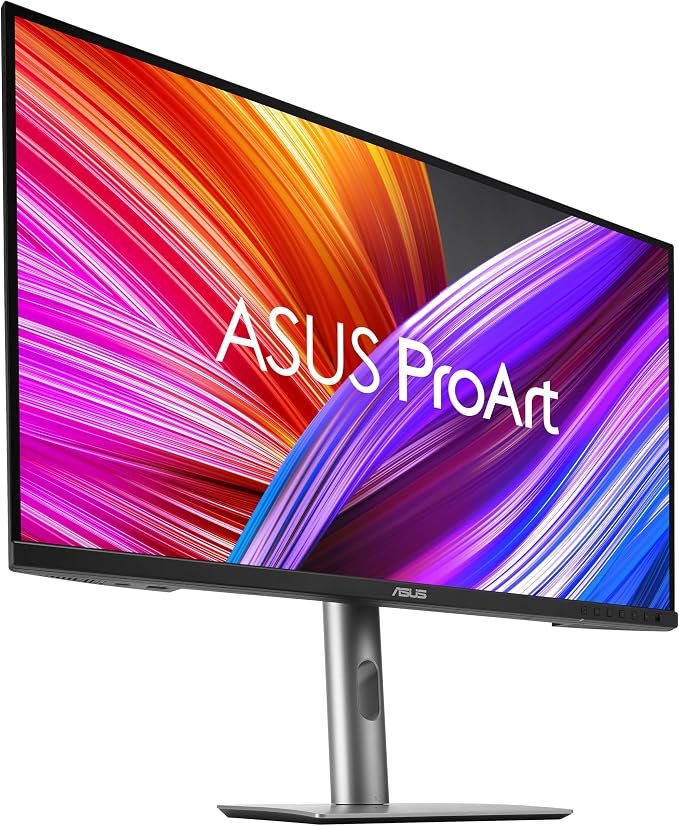
\1. A 27-inch 4K IPS HDR panel with 99% DCI-P3 and 99% Adobe RGB coverage, factory calibrated to a Delta E below 2 and Calman Verified, with 96W of USB-C power delivery. For editing this is the pick: the calibration is the reason it costs more than the budget option.
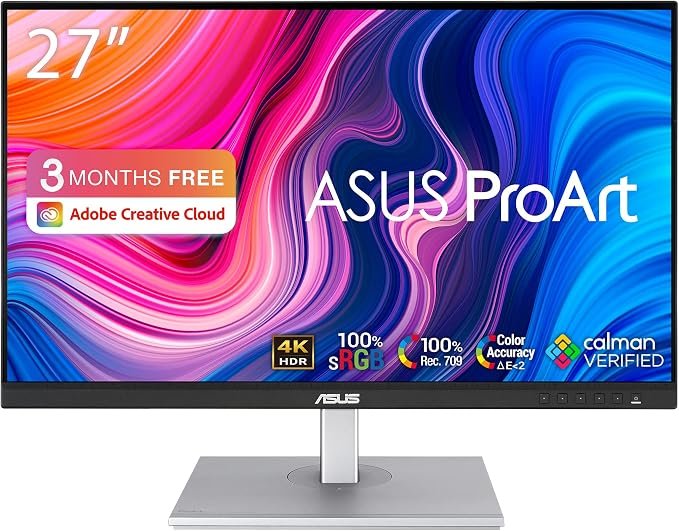
\1. The same 27-inch 4K IPS resolution and the same 100% sRGB and Rec. 709 coverage, also Calman Verified and factory calibrated to Delta E below 2, with adaptive sync from 40 to 60 Hz. The honest difference is the refresh rate - this is a 60 Hz panel, so it is the right buy for documents and editing and the wrong buy for games.
Prices move daily - the card under each pick carries the current one, so trust the card rather than any figure quoted here.
A basic quick guide
The most important thing is your budget. Your budget dictates what monitor you can actually buy, and what abilities that monitor will have.
I want a cheap foundation. Buy a 24" monitor with a FullHD resolution of 1920 x 1080 and an IPS panel. Even at a low price, you won't have any significant problems.
I need a standard monitor. Take a 27" monitor with a resolution of 2560 x 1440.
I want to play a lot of games. Look for a monitor with at least 144 Hzsupport. Choose its resolution according to the capabilities of your graphics card. It's useless to think between 144 Hz or 165 Hz when your graphics at the monitor resolution won't even reach 144 FPS.
One monitor is not enough for me. There are many benefits to having more than one monitor. You can have two or three of the same monitor or leverage the strengths of different technologies and types.
Or, You may benefit from one wide-angle display (21:9 or even 32:9) or a larger monitor over 32 inches with a 4K resolution of 3840 × 2160.
I need a color-accurate monitor. For graphic work, we recommend monitors with IPS panels at a medium and higher price. There are special models with color calibration.
Why are cheap monitors actually cheap? They save money mostly on the panel itself, which uses older technologies lacking brightness and color intensity. It also lacks an adjustable stand, you only get a weaker selection of connectors (HDMI is common), and minimal adjustment options.
Why are expensive monitors really expensive? The price of the monitor is not only increased by a usually modern, higher-quality display with more accurate or intense colors or a faster refresh rate. You also pay extra for a better stand, a wider selection of connectors, speakers, a built-in webcam, setting options, and other premium equipment.
Is a cheaper TV not enough for me than a large monitor? The TVs do not have adjustable stands, they cannot sleep and wake up together with the computer, and they do not have a Displayport connector. A number of expensive TVs work well despite these shortcomings. With cheaper models, more caution is in order, as they may not work as well with a computer.
In this article, we will discuss the key parameters of the monitors so that you can navigate their specifications and choose the right monitor for your needs. There's no need to pay extra for things you won't use, but it makes sense not to leave out a feature that you might personally miss.
Which monitor size to choose?
Although the answer "the bigger the better" is offered, this is not entirely true. For an average distance from a 16:9 monitor on a desk, the maximum diagonal limit for comfortable work is around 32".
You should choose 24" as the smallest diagonal, then 27" for standard work. Within monitors with a common 16:9 aspect ratio, the next and final step should be 32". With larger diagonals, the upper edge of the monitor already exceeds eye level and leaves the ergonomics zone.
Wide-angle monitors with aspect ratios of 21:9 or 32:9 derive their dimensions from the height of a standard 16:9 monitor. A monitor with an aspect ratio of 21:9 and a size of 34" is actually the same height as a 27" monitor. It also has the same resolution of 1440 pixels in height.
Of course, a larger screen is better for watching movies, but then you have to pay more attention to the placement of windows on the screen during everyday work. For these large monitors derived from TVs, I also recommend a black desktop background to better focus on the given application window.
What resolution should the monitor have?
The monitor's resolution goes hand in hand with the diagonal. You should choose the one that feels best at 100% system font size scaling.
Both Windows and MacOS can change the size of user interface elements independently of the resolution, but this only makes sense for fine-tuning or on laptop screens. For a Windows PC, buying a 4K display is pointless just to use 200% font size on it.
Today, the smallest useful resolution should start at 1920 × 1080, also known as FullHD. Other resolutions have similar abbreviations, but it's actually easier to talk directly in the numbers of points for width and height than to explain what each letter means, for example with WQHD+. Perhaps only the 3840 × 2160 resolution has already been labeled 4K or UHD.
Surely, you understand that content with a resolution of 1920 × 1080 on a 27" monitor will look larger than on a 24". Likewise, the icons on a 27" diagonal with a resolution of 2560 × 1440 look similar to those on a 24" monitor with a resolution of 1920 × 1080.
For a better understanding, we have the PPI (pixels per inch) parameter, which will help you compare the given monitor to another that you are used to. On monitors with a similar PPI, system elements such as icons and their labels look similar in size. We've calculated a few common sizes and resolutions here (try others yourself in our online calculator ).
Screen Size
Resolution
Aspect Ratio
PPI
55"
3820×2160
16:9
80
27"
1920×1080
16:9
82
24"
1920×1080
16:9
92
32"
2560×1440
16:9
92
42"
3820×2160
16:9
104
49"
5120×1440
32:9
109
27"
2560×1440
16:9
109
38"
3840×1600
21:9
109
34"
3440×1440
21:9
110
32"
3820×2160
16:9
137
40"
5120×2160
21:9
139
28"
3820×2160
16:9
157
So, if you're comfortable with the native resolution of a 24" monitor and just want a bigger surface, go for a 32" with a resolution of 2560 x 1440. You may also notice that many very different monitors are around 110 PPI, so the basic font on them will be the same size as on a regular 27" monitor. I do not recommend using a 28" monitor with 4K resolution at 100% font size, it would be too blurry.
Within Windows, you can resize system elements quite smoothly without affecting system performance. Not all applications work correctly and look nice with a value other than 100%, but you can fine-tune the system a bit.
It's a little worse on MacOS. You can drive in base mode without scaling, or in Retina mode, which combines four pixels into one, without affecting performance. The available resolution will then be half but with a finer presentation of edges and smoothed letters. It corresponds to the 200% setting in Windows.
The 28" monitor with 4K resolution for MacOS can thus serve as a comfortable FullHD monitor with more delicately rendered edges without visible pixels. The graphics card on MacOS already calculates another scaling, which is reflected in lower available performance, for example, when rendering video.
Yet another warning: If you are choosing a monitor for an older (say, more than six years old) computer or laptop, you may have problems with resolutions above 2560 × 1440. Your new beautiful 4K monitor is not to blame, the culprit is the old computer standards which are unable to show higher resolutions.
What type of monitor panel to choose?
Even today, you can still buy a monitor with a TNpanel technology, but don't. They are not even cheaper or faster than other competition, so they make no sense (unless you are First Person Shooter ultraprofessional as the TN technology is able to go as fast as 540 Hz). The most comprehensive range of monitors, from cheap to extra expensive, uses IPS (or PLS, ADS) panels, which can offer accurate color reproduction. When viewed from the sides, the contrast only decreases – the colors fade slightly and the image becomes lighter. Today, these panels are also usable for fast gaming monitors. The main disadvantage of IPS is a lower contrast of around 1000:1 with a lighter black area, although there are already exceptions here.
Significantly better contrast ratio (roughly 3000:1) and more vivid colors will be offered by panels of the VA type (or PVA, MVA). But they change the color shade when viewed from an angle, which is noticeable even if you are sitting directly in front of a larger flat monitor. That's why VA panels are used for curved wide-angle monitors, where your view falls even on the edges in an almost vertical direction and the colors don't change. VA panels are also usually among the slower ones - they manage to change the image more slowly and are not recommended for intensive gaming. Although, of course, there are expensive gaming VA exceptions.
OLED panels are now appearing to a greater extent, which either come from TVs or are expensive professional panels. OLED will offer breathtaking contrast, intense colors, and the fastest image recovery. But, with OLED, you have to be careful about burning the image. You don't have to be afraid of it, just use the monitor in the dark mode of the operating system and don't leave the same content on it unnecessarily. The disadvantage of OLED is the lower maximum brightness of a large white area. A full-screen white page in Word will shine much brighter even on a basic IPS monitor than on an extra expensive OLED monitor.
Briefly
For everyday office work, you don't have to deal with it and choose IPS or VA panels.
If you want to be creative and appreciate accurate colors, choose a more expensive IPS panel.
When you're more drawn to consuming content like watching movies and playing graphics-intensive games, you'll have more fun with a VA panel.
VA makes more sense for curved monitors.
For demanding competitive gaming, choose IPS or OLED.
When you play mainly for fun, VA or OLED will provide a more intense gaming experience.
A seemingly important feature is the matte or glossy surface of the panel. Matt diffuses the incident light better, so it better resists direct light. The glossy surface, in turn, will provide a sharper feeling of the image, and it can suppress disturbing reflections with an additional anti-reflective layer. In general, you will appreciate a matte finish on cheaper monitors, but you don't have to worry about a glossy surface on more expensive, brighter monitors, because the higher price often comes with an anti-reflective panel finish.
What refresh rate?
Refresh rate refers to the number of times per second that a display updates its image, measured in hertz (Hz).
If you are choosing a monitor for office or creative work, you don't have to worry about the refresh rate of the monitor. Faster monitors with a higher refresh rate may feel better when you're scrolling smoothly through a long document or web page, but it's not something that has to play a significant priority in your choice. Even the basic 60 Hz will be enough for you. Take anything above this value as a nice bonus.
For a demanding gamer, the refresh rate is much more important. A higher frequency means more frames of animation on the screen, a faster reaction to a possible opponent and a sharper picture in motion without blurring.
But there is no need to chase after the highest possible refresh rate (unless you are the pro). A common mortal would have a hard time telling the difference between 165 Hz and something higher. You can probably tell the difference between 60 and 144 Hz, but between the close values of 144 and 165 Hz, the differences blur. At higher frequencies, the limits of the panels used also start to play a role. Panels then often render images faster than the previous ones fade away, resulting in blurring and ghosting of moving objects - unless you are using OLED type display.
Task
Refresh Rate
Note
Office, Watching movies, Internet, Graphics, Video Making, Programming
60Hz
None of the tasks need a higher refresh rate, but if it is available, it is nice to have it.
Gaming
120Hz - 240Hz
The higher, the better - if your computer can produce FPS to feed the display (There is no benefit if your PC can only do 60FPS.)
First Person Shooter Pro-Gaming
240Hz and above
Higher is better
Importance:
Gaming: A high refresh rate is particularly important for gaming, where it can enhance the smoothness of motion and improve the responsiveness of the gameplay. It allows gamers to experience more fluid visuals and can provide a competitive edge in fast-paced games.
If your computer can only render 70 Frames Per Second (FPS) in a game, the monitor can’t make it any faster even if you are using a 480 Hz panel.
Video Playback: When watching movies or videos, a higher refresh rate does not make the image smoother. There is no benefit because most video content is filmed at 24, 30, or 60 frames per second.
General Use and Productivity: While not as critical for general computing tasks, a higher refresh rate can still contribute to a smoother experience when scrolling through documents, navigating web pages, or moving the cursor.
The optimal refresh rate depends on the user's specific needs and sensitivity to motion smoothness. While 60Hz is standard and sufficient for most general tasks, 120Hz - 165Hz offers a significant improvement for gaming and dynamic content. Ultra-high refresh rates like 240Hz and above are primarily targeted at competitive gamers.
Compatibility with content and input sources is important. For instance, if video content is shot at 24 frames per second, a refresh rate higher than 60Hz will not provide a noticeable improvement for that content.
Some technologies, such as NVIDIA's G-SYNC and AMD's FreeSync, allow the display's refresh rate to dynamically match the output frame rate of the graphics card, reducing screen tearing and stuttering without requiring a consistently high frame rate from the hardware.
G-Sync or Freesync?
For gaming monitors, it is more useful to synchronize the refresh of the image with the graphics card. By default, the monitor sends the image content from the graphics card to the display at its own pace. But sometimes the graphics still don't have the whole frame ready, so the monitor displays part of the new frame at the top and part of the old frame at the bottom, which looks distractingly like a torn image.
In the game, you can therefore turn on vertical synchronization ( V-Sync ), which will offer the monitor the entire previous frame, when the new one has not yet been calculated. The picture doesn't look torn, but it sometimes jerks because you're seeing two identical pictures one after the other.
That's why graphics companies have developed variable refresh rate synchronization. The monitor is then able to refresh the image in a continuous range of speeds, for example, from 40 to 165 Hz. As the graphic completes the image, the monitor will retrieve it and display it. Nothing is displayed twice, and the entire frame is always visible. Thanks to this, the image is smooth and without tearing.
Nvidia offers this feature as G-Sync, AMD cards refer to it as Freesync. Monitors with G-Sync support are generally more expensive because they have to have an additional chip, so Freesync is more widespread and available. That's why Nvidia backed down some time ago and supports Freesync monitors as "G-Sync compatible" on its graphics cards. Therefore, with Nvidia graphics, you can use this function even with cheaper monitors that only indicate Freesync.
This compatibility does not apply only if you want to play with variable game sync in HDR. You need a monitor with G-Sync Ultimate for Nvidia cards and Freesync Premium for AMD cards.
What connectors do I need for the monitor?
Even cheap monitors today offer at least one HDMI connector. There are still monitors with older DVI or VGA connectors (also known as D-SUB), but you can only use them for very old computers.
I would like to forbid you from thinking about the VGA connector; the image is blurry, and it is not capable of a higher resolution.
If you only have a DVI connector on your graphics card, the reduction to HDMI is cheap. You do not necessarily have to choose a monitor with a DVI connector.
If you also want to connect a game console to the monitor, choose a monitor with an HDMI 2.0 or HDMI 2.1 connector (if you want to play in 4K and 120 Hz on modern consoles). For gaming consoles, consider only monitors with a resolution of 1920x1080 or 3840x2160. Other resolutions are supported poorly or not at all on consoles.
For a computer, the Displayport connector offers the best resolution and high refresh rates. If possible, connect the computer via Displayport.
If your laptop only has a USB-C interface, communication for Displayport is directly part of the USB-C standard. A cable between USB-C and Displayport is cheap, and Displayport is included in many USB-C docks. Unfortunately, cheap USB-C laptops only support the USB interface without the possibility of connecting a monitor, which at least has an HDMI connector.
The HDMI connector on the monitor supports a maximum monitor resolution of at least 60 Hz. But if you connect an older laptop to a 4K monitor via HDMI, you might only see full 4K resolution at a 30Hz refresh rate, which isn't much for work, let alone entertainment and gaming. Old computers only support HDMI 1.4, while 4K/60Hz support is only part of the HDMI 2.0 standard. If this older laptop already has a USB-C connector, connect the monitor via the USB-C reducer to Displayport.
Better monitors add USB connectors for more convenient connecting peripherals such as keyboards, mice, or webcams directly to the monitor. You must then connect the monitor to the computer with another USB cable. Since the HDMI and Displayport standards also include the transmission of sound from a computer, you can also find audio output to headphones or speakers on the monitors.
More expensive monitors will also offer a USB-C input, which connects the image, USB, and often the power supply and network connection in a single cable. So, a single cable from the laptop is enough to connect not only the image but also the USB connectors on the monitor, and you will power the laptop directly without the need to connect a power adapter.
So, if possible, connect your computer via Displayport or USB-C. The HDMI is an alternative. Ignore the older DVI or VGA connectors and do not require them on the new monitor.
How bright a panel will be enough for me?
You need a very bright panel to see something on the monitor, even on a clear day. However, you may need a lower brightness requirement for work in the evening or in a darkened room. Brightness is given in nits or candelas per square meter (1 nit = 1 cd/m²). You don't need to understand the concept of nit or candela to classify the monitor according to the indicated brightness.
Up to 250 cd/m² - rather cheaper ordinary monitors that may not look comfortable on a clear day
Up to 350 cd/m² - a reasonable basis that is enough for typical office daily work
Up to 400 cd/m² - better monitors that are already able to light up pleasantly and are easy to see even on a clear day
Up to 500 cd/m² – top monitors that often dare to display content in HDR
Above 500 cd/m² – premium and thus very expensive monitors
Although many monitors offer the most accurate colors at a brightness setting of 120 nits, that brightness is in my opinion only suitable for night work. You should set the brightness that suits you best. A brighter monitor will give you more room for your optimal brightness settings and often also offers a better-quality panel with more accurate color rendering.
Don't worry about sRGB, DCI-P3, or HDR.
You will often encounter terms like "110% sRGB coverage", "AdobeRGB support", or "DisplayHDR400 certification" in the monitor's specifications. These terms are mainly aimed at creators who require accurate colors so that their carefully selected color shade looks the same as possible on other monitors.
You may come across these standards:
sRGB – basic color depth space for computers and websites. If the monitor can't even cover the sRGB standard, deep red will look more like brick, and other colors will be similarly muted.
DCI-P3 – a wider color space used for HDR content, also used as the default standard for Apple computers and phones. Thanks to the wider space, you can set not only the usual colors from the sRGB space but also colors known from, for example, a reflective vest or a rich flower.
AdobeRGB – A standard developed by Adobe that can display printable colors on a computer monitor. This is because sRGB does not show all the colors you can print on paper. The range is similar to DCI-P3 but with a greater deviation towards blue-green shades (for example, the color of needles on a larch).
HDR (High Dynamic Range)– From movies on TVs, we have known intense bright bursts and dazzling flashes for several years, which is the result of content adjusted for high dynamic range – HDR. You can also find support for HDR in a lot of computer games, so it makes sense that HDR monitors are also offered. However, since monitors usually do not offer such high brightness and contrast between black and bright white, the HDR effect is not as pronounced on them as on TVs.
The HDR quality is then expressed by the DisplayHDR label supplemented by the maximum brightness value. DisplayHDR400 corresponds to the maximum brightness of a regular monitor, so you won't experience many flashes. You will already recognize something on the DisplayHDR600, and the DisplayHDR1000 can show really clear effects.
The DisplayHDR400 True Black label is used for OLED monitors. Thanks to the high contrast with deep blacks, HDR effects are pronounced, even if the maximum brightness does not exceed 400 nits.
Although some monitors can use the local backlight control known from televisions, this is distracting for normal computer work. For gaming in HDR, we recommend OLED monitors and TVs.
How do I recognize a good monitor?
We have covered the basic explanation of the parameters, but how do you know which monitor is the right one for you? You probably can't test the monitor for a few days before buying it and maybe even measure it with a calibration probe. However, you can also distinguish the monitors based on the photos and a brief overview of the parameters.
Then, look at the design of the stands. Even if, for example, you later attach the monitor to the wall or special stand and do not use the supplied stand, it can be said that monitors with a bad image do not have excellently positionable and well-designed stands. You can also estimate the quality of the image based on the stand. It is also true that really cheap monitors do not even allow the possible installation of the monitor on an additional wall bracket.
For two seemingly identical monitors, focus on features in this order of importance:
Indicated brightness. The more, the better. Higher brightness also indicates better and more accurate color rendering.
Maximum operating frequency. Even if you don't actually use it, a higher frequency indicates a more modern and better panel. But it makes no sense to get above 165 Hz of refresh rate, where, on the contrary, due to the speed, sometimes compromises are made in the image.
Design of stand and body. The monitor will stand on your desk, and you won't take your eyes off it. So you should like it; or more precisely, don't mind.
Connector menu. It's good to have both HDMI and Displayport. More connectors, including USB, are always useful, and a monitor littered with connectors rarely has a worse image.
Support for color standards and HDR. Most monitors today handle the sRGB color space quite accurately. If a more expensive monitor has problems with accuracy, it is due to more "enthusiastic color rendering" above the required standard rather than dull colors below it. If you are looking for an accurate monitor, the manufacturer often boasts of calibration or certification. Consider HDR on the monitor only as a pleasant bonus; if you seriously require it in a visible version, you will pay significantly more.
Bonus equipment. Are you interested in a built-in camera, support for displaying multiple sources at the same time, USB switching between two different computers (KVM), or powering a laptop via USB-C? It is up to you to decide.
If your monitor is already sitting on your desk or you are viewing it somewhere in the store, check the viewing angles. Look at the monitor from the upper left corner and notice if the colors are too faded or changed.
If the monitor is connected to the computer, set the desktop background to orange in Windows (right button on Desktop, customize, background solid color, "gold" first left top). From a working distance in front of the monitor, check whether the color rendering in the corners has changed, for example, to light or greenish. With larger flat monitors with VA panels, you already look at these corners from a larger angle, and this changes the color rendering.
Test the monitor redraw speed in your browser at TestUFO.com/ghosting. Aren't the flying UFO pictures too blurry? Don't they drag disturbing dark streaks behind them or, on the contrary, a light wave in front of them? Only the best monitors can handle it sharply, and without traces, you can survive even with slight blurring, but longer dark streaks indicate a slow VA panel, which will bother you over time. It is mainly useful for comparing several different monitors.
If there was a lot of information to digest, we will try to present the issue of monitor selection in a different way:
We are an undemanding family needing a new monitor: 24" Full HD monitors are the basis, but even with them, avoid cheap TN panels. IPS panels start well under $100/£100, that's the minimum for a reasonable basic monitor.
We are a family where the computer is used for office work and occasionally playing light games, it is used by both adults and children: Choose the best 27" monitor with a higher resolution QHD 2560 x 1440 px, with an IPS panel and ask for height adjustment.
We are a family where the boys demand a fast monitor because a friend from school one and they say they need it for Minecraft: They don't need a fast monitor for this purpose, but a 24" model with a high frequency costs almost the same as a regular 24" monitor. Don't tell the kids, and you'll be a hero.
I want a monitor for office and Internet work, drawing, graphics, etc.: Here, the monitor can fundamentally make work more pleasant and faster, so that even a more expensive model wins. 32" 4K monitors with a traditional 16:9 ratio start at under $300/£300, but thanks to 2,160 pixels in height, they display much more content. This is especially useful when working on web projects.
I'm a more demanding gamer, and I want to be really drawn into the story, but at the same time, I don't enjoy playing Counter-Strike: Choose one of the monitors with a 21:9 aspect ratio, with a curve and a diagonal of 34". Be sure to want a model with a resolution of 3440 × 1440 px. You don't need such extreme graphics as for playing in 4K, on the other hand, models with a lower resolution are already too "corse". If you often need two windows for work, this monitor will comfortably allow them - only the vertical space is not as large as in the previous case. It is not out of the question to purchase two monitors, one for gaming itself, and the other for open chat on Discord.
I want the best, I don't care about money: You can consider OLEDs, which are starting to gain ground on the market. Filters of the e-shops will reveal that there are a few dozen models and the ones we recommend sit close to the price of a good 4K LCD rather than a premium on top of it. However, they will offer a lightning-fast response, true blacks, and other benefits.
I want a monitor to which I will connect a new game console at the same time: Your budget will tell you how big and good a monitor you can buy, but look for the presence of HDMI 2.1 to use the maximum potential (4K/120 Hz) and stick to the 16 aspect ratio: 9, as they have televisions.
Our recommendations
Links marked with * are affiliate links. If you buy through one of those links, TipsForMyself will receive a small share of the sale.