Wi-Fi

How to Choose a Good Router: The Ultimate Guide to Fast, Secure, and Reliable Wi-Fi

How to Choose a Good Router: The Ultimate Guide to Fast, Secure, and Reliable Wi-Fi

A Wi-Fi router is the device your whole house connects through, and most people buy it the way they buy a toaster: once, years ago. The good news is that the decisions have got simpler. The bad news is that the thing on the shelf is usually a satellite, not a router.

Router or mesh? Read this first

Two of our three picks below are add-on satellites, and you cannot buy one on its own - a satellite extends a mesh system that you already own, and does nothing without it. If you have no mesh system yet, buy the kit: a router with a satellite included. If you have one and a dead spot, buy the matching satellite. This single distinction is the most common expensive mistake in this category.

What to look for

Speed is the number on the box, and it is the least useful one: AX6000 is a combined figure across three bands, and what reaches your phone in the kitchen is a function of distance, walls and how many neighbours are on the same channel. Coverage area is the figure that matters, and it is the one to compare. Then check the wired port speed - a router with 2.5Gbps ports will keep up with a fast broadband connection and a NAS behind it, and one with 1Gbps ports will not. And check the standard: Wi-Fi 6 is the current mainstream, Wi-Fi 7 is the newer generation, and a satellite is only compatible with its own series.

Our picks

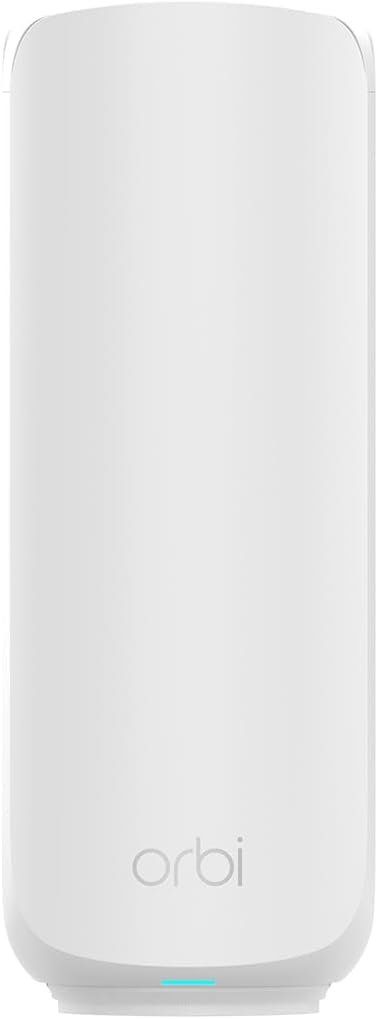
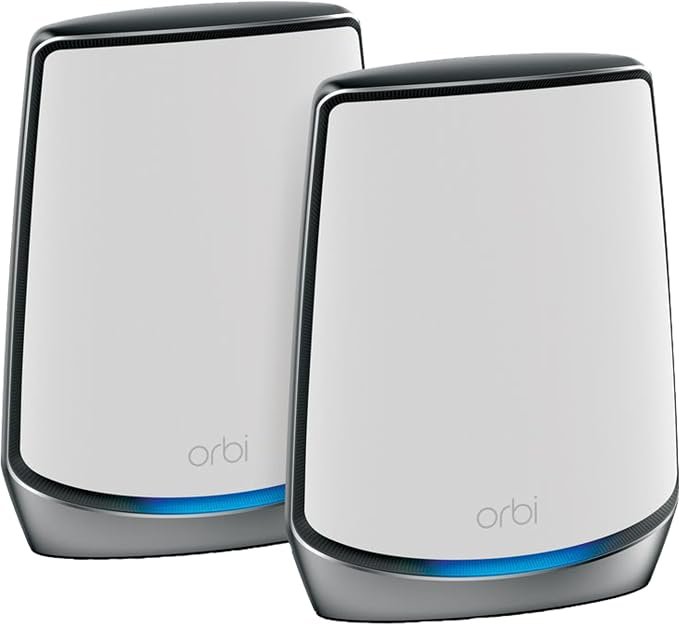
  • Top pick - NETGEAR Orbi RBS760 Wi-Fi 6 satellite, price not confirmed today - check the card. Adds up to 2,000 sq ft of tri-band Wi-Fi 6 coverage at up to 5.4Gbps, and pairs with the RBK762S and RBK763S Orbi systems. If you already run an Orbi Wi-Fi 6 kit and one part of the house is out of range, this is the satellite to add.
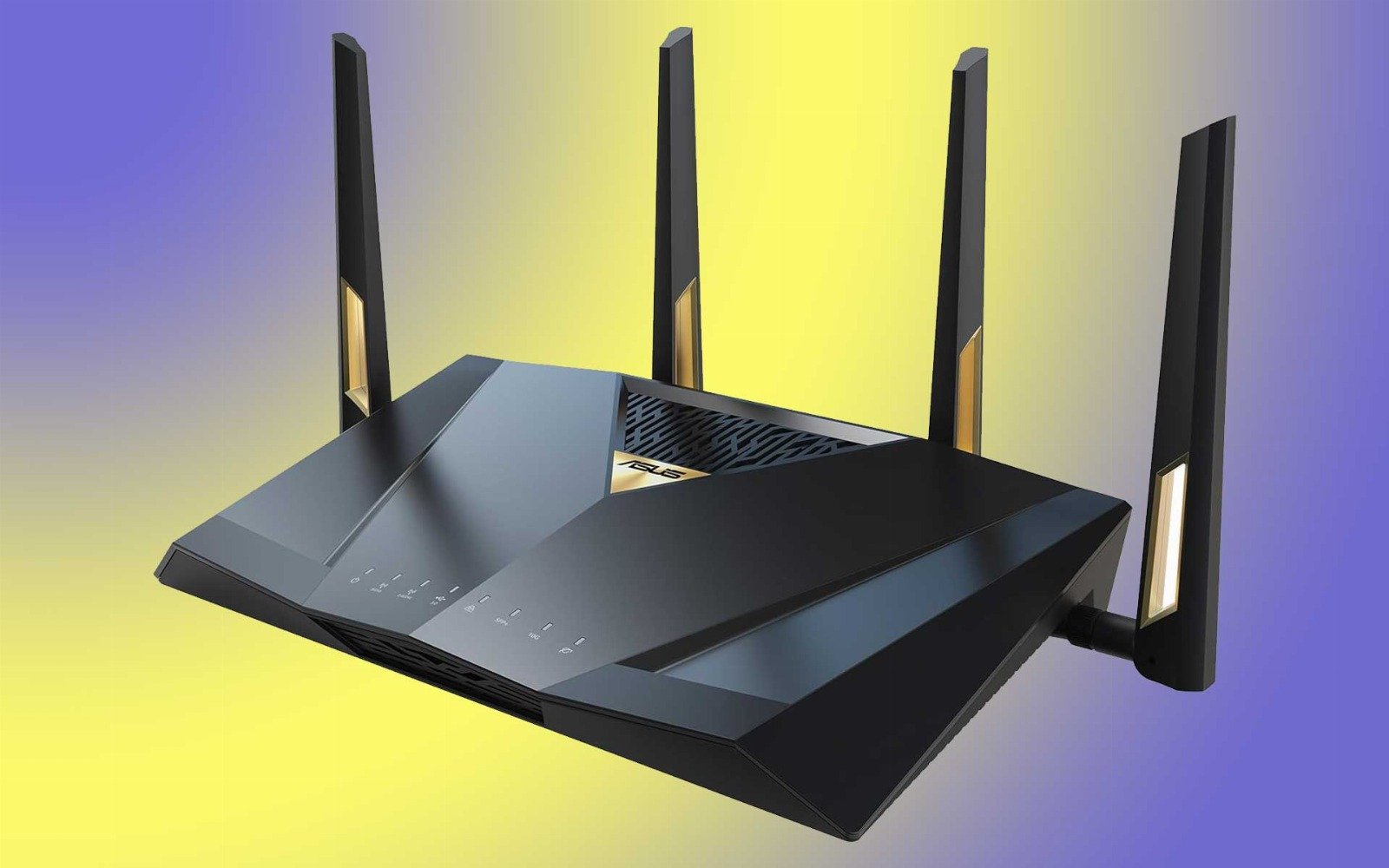
  • \1. The complete system: a Wi-Fi 6 router and one satellite, covering up to 4,000 sq ft and up to 100 devices, with AX6000 speed and 2.5Gbps wired ports so it will not bottleneck a fast connection. Every additional satellite extends coverage by about 2,000 sq ft. This is the pick if you are starting from nothing.
  • \1. The cheapest way to expand a Wi-Fi 7 Orbi 370 system (RBE371, RBE372, RBE373), adding up to 1,500 sq ft per satellite. Check which Orbi series you own first - this one will not pair with the Wi-Fi 6 kits above.

Prices move daily - the card under each pick carries the current one, so trust the card rather than any figure quoted here.
Wi-Fi Standrards

From the outset, it is essential to clarify the current Wi-Fi standards.

Even four years after the nomenclature was unified, there remains considerable confusion. While some vendors use the original designations (e.g., 802.11ax) and others the new ones (Wi-Fi 6), others successfully combine them.

The table below provides an overview of current and known future standards:

DesignationOriginal nameSupported frequenciesMax. channel widthModulationMax. theoretical speed

Wi-Fi 1

802.11b2.4GHzup to 20 MHz64-QAM11 Mbps

Wi-Fi 2

802.11a5GHzup to 20 MHz64-QAM54 Mbps

Wi-Fi 3

802.11g2.4GHzup to 20 MHz64-QAM54 Mbps

Wi-Fi 4

802.11n2.4 + 5 GHzup to 40 MHz64-QAM600 Mbps

Wi-Fi 5

802.11ac5GHzup to 160 MHz256-QAM3.5 Gbps

Wi-Fi 6

802.11ax2.4 + 5 GHzup to 160 MHz1024-QAM9.6 Gbps

Wi-Fi 6E

802.11ax2.4 + 5 + 6 GHzup to 160 MHz1024-QAM9.6 Gbps

Wi-Fi 7

802.11be2.4 + 5 + 6 GHzup to 320 MHz4096-QAM46.1 Gbps

Until the release of Wi-Fi 6, we had no significant problems with labeling, as the number corresponded to a specific generation of the Wi-Fi standard. However, two new additions break the proven nomenclature. Next, it's Wi-Fi 6E, and from the beginning of 2022, Wi-Fi 6 Release 2. The confusion and inconvenience that we experience with unclear labeling with USB are now also with Wi-Fi.

What Wi-Fi 6E brings

The Wi-Fi 6E standard builds upon the original Wi-Fi 6 (802.11ax) standard, adding functionality in the 6 GHz band. It was released for general use in early 2021.

This has resulted in a significant expansion of the wireless communication space, which has almost doubled. A new 480 MHz band is added to the original 538.5 MHz, providing a new opportunity for highly disturbed areas, such as apartment buildings, where it is currently impossible to operate without significant overlap on both the original 2.4 GHz frequency and the newer 5 GHz band.

The Wi-Fi 6 theoretical maximum of 9.6 Gbps remains unchanged for Wi-Fi 6E. However, thanks to the new 160MHz channels, real-world speeds are higher and more stable.

Prices for routers with Wi-Fi 6E support start at $100/£100. They will soon enter the popular mid-range category.

Unfortunately, manufacturers are not making it easy to choose new routers. Some of the current routers labeled Wi-Fi 6 may also be compatible with Wi-Fi 6E, provided they physically contain radio components that support the 6GHz frequency. In this case, the only condition is a firmware update that activates the new standard on the software side.

However, in most cases, current Wi-Fi 6 routers cannot use the new band, and for communication at 6 GHz, a device with the 6E designation will be required. Of course, this is not only on the network infrastructure side, but also on end devices—such as phones, laptops, or TVs.

If you are shopping for a new router now, it must support at least Wi-Fi 6. Routers with Wi-Fi 5 (802.11ac) support should no longer be considered and crossed out from the selection.

Wi-Fi 7

The arrival of Wi-Fi 7 represents a significant leap, comparable to the transition from Wi-Fi 1 to Wi-Fi 3 or the introduction of Wi-Fi 5 in the past. It's not just about optimization but a significant improvement in network throughput, latency, and stability.

The primary change is the wider channels, which increase from 160 MHz to 320 MHz. QAM modulation will go from 1K (1024) to 4K (4096), resulting in a maximum signal speed of 5.8 Gbps. For Wi-Fi 6E, the maximum throughput is 2.4 Gbps.

The new devices operate in two bands simultaneously, which will further increase throughput and ensure more stable transmission. The number of streams (MU-MIMO) will be increased to 16 × 16, allowing more devices to utilize a single wide channel.

Another useful feature is Multi-Link Operation (MLO), which enables devices to combine multiple bands for connection, allowing both the 2.4GHz, 5GHz, and 6GHz bands to be active simultaneously. Thanks to this aggregation, connection speeds and reliability have been significantly increased. Practical tests show that modern laptops achieve transfer speeds of 2,400 Mbps in line of sight. However, this also means it can become a bottleneck, and the router should be equipped with at least 2.5 gigabit LAN ports.

Several dozen routers with Wi-Fi 7 support are already on the market; prices start at around $100/£100. Cheaper models typically do not utilize Wi-Fi 7's full potential and are not significantly better than routers with Wi-Fi 6. 
First of all, they lack support for the 6GHz band. However, they support 160MHz channels, 4K-QAM modulation, and the Multi-Link Operation (MLO) function for connecting multiple bands, so if you have a mobile phone, tablet, or computer with Wi-Fi 7, the connection will be faster than with an equivalent six-band router. As more devices with Wi-Fi 7 become available, it makes sense to consider a new-generation router, given the future implications.

How many physical ports should a router have?

In ordinary homes, most network traffic will be wireless. However, a wired computer network still has its place, and your new router must offer a sufficient number of at least gigabit ports.

The rule of thumb is: If it is stationary (such as a computer setup, network storage, or even a smart TV), connect it to a LAN cable. If it's a mobile device (such as a smartphone, tablet, or laptop), connect it to Wi-Fi.

On your computer, you can squeeze out every millisecond in games or, conversely, achieve the highest possible transfer speed for working with data on your NAS. And on your TV, a stable connection will also be beneficial - the demands of today's high-bitrate audiovisual content are substantial, whether when streaming from Netflix or playing even higher-quality recordings from your NAS.

A good standard is at least four computer network ports, but a higher number will be a nice bonus. Trust me, you'll gradually find a use for them.

If your home is also a workspace, you can look for models offering higher Ethernet transfer speeds than basic gigabit.

Routers and other network elements with 2.5Gb/s networks are often available, and for an additional fee, you can obtain double or even quadruple the speed (10Gb/s). However, in the latter case, it is more of a corporate matter, and the vast majority of end devices cannot handle such a speed.

How important is the number of antennas in routers?

In addition to the number of physical ports for a wired computer network, pay attention to the number of antennas. Simply put, the more Wi-Fi antennas, the better.

The fundamental basis is two antennas, which enable MIMO operation, i.e., multiple streams simultaneously active to end devices. At least four antennas are required to utilize both the 2.4 GHz and 5 GHz bands in true duplex mode, where data can be sent and received simultaneously to multiple devices.

However, many manufacturers also opt for a dual-antenna solution, where both bands share a single antenna. This does not necessarily mean lower speeds, but when operating with a larger number of devices, they will most likely drop signal faster than with a four-antenna solution.

More antennas will ensure higher transmission speeds and better coverage, but it all depends on their correct position.

For external antennas, follow the manual for their correct orientation. If you can't find any advice in it either, set the outer antennas at an angle of about 30° to each other and leave the rest in a vertical position.

Increasingly powerful processors in routers are also responsible for increasing wireless connection speeds. They enable the operation of more advanced types of modulation, the current one in Wi-Fi 6 being 1024-QAM. Compared to 256-QAM and 64-QAM in previous versions of Wi-Fi, the amount of data transferred simultaneously has increased by an order of magnitude.

Mesh is needed for proper coverage.

Even the best antenna setup cannot guarantee coverage of larger apartments or houses, where the Internet is often necessary to be introduced to multiple floors.

In any case, more network elements will be necessary, with mesh networks being the ideal nowadays.

The routers are interconnected, and all stations appear to the end device as one network. There is no need to change the network when moving from one room to another or from one floor to another. The individual stations pass the phone or laptop to each other, resulting in no interruption in the connection at all.

Almost every manufacturer of networking equipment offers its own mesh standard so that you can expand your network over time. For example, you can start by purchasing a central router for the ground floor and a second compatible station for the attic. Over time, you can connect additional stations to the network to cover the garage or outdoor area.

The mesh devices don't have to be the same models; they just need to support the correct standard from a specific manufacturer. However, we strongly recommend checking compatibility here - one manufacturer does not always mean one standard for a mesh network.

For example, TP-Link initially introduced the Deco series among these devices but gradually adopted the OneMesh (EasyMesh) standard, which supports multiple routers and extenders. However, Deco and One Mesh are not compatible with each other. Asus has its AiMesh system, D-Link has the Covr system, and Zyxel has Multy.

If you choose between regular routers that can be connected to a mesh network, the costs do not have to increase significantly. This represents a significant difference compared to a few years ago when we first became aware of mesh systems. Back then, a mesh system meant a specialized line of devices, where purchasing three stations cost around $350/£300. Currently, you can buy a central router with mesh support for around two $90/£80, and you can expect to pay around $60/£50 for each additional expansion station.

Routers need to be managed remotely.

While well-chosen hardware ensures network coverage and stability, well-functioning software manages and controls the network.

The absolute foundation of any router, regardless of price range, must be a straightforward web interface with options to configure network security and traffic. Users must be able to limit transfer speeds for end devices or even turn off the connection at certain times.

The second option is more related to parental control, which may not be a standard feature. However, advanced routers offer it, even in the form of very good mobile applications. For example, parents can block TikTok, Facebook, Instagram, or YouTube directly on the router at certain times and also block other video portals intended for an adult audience.

Other advanced features that come in handy include running a VPN server to access home network devices from the outside.

If a USB connector is also available, the router system will offer other options. Again, the more there are, the better. One of them will be useful for network printing. If more than one household member currently works from home and occasionally needs to print, this is an ideal solution with a regular non-network printer.

The second option for using the USB port is to connect an external drive that can function as network storage – typically for backups. Even if you connect a slower mechanical drive to the router, the lower speeds will not limit you to regular backups. Although routers do not offer as advanced file management capabilities as standard NASes, they are a sufficient option for backup or convenient data transfers over a local network.

Automatic updates should be a standard feature for modern routers, or at the very least, a notification of the availability of new firmware versions. It remains true that even the latest router with an outdated system can quickly become a dangerous gateway to your data.

Outdated routers are among the elements targeted by a significant number of attacks, and security issues affect absolutely all manufacturers. If new security patches are no longer available for your outdated router, it's time to replace it.

Reasons for buying a new router.

While ISP routers are usually built for basic functionality and easy setup, they often lack the software features that gamers, power users, remote workers, and families benefit from. Investing in a high-end or prosumer router gives you more control, better security, and an overall superior network experience.


A good router — especially one not provided by an ISP — often comes with advanced software features that significantly improve network performance, security, customization, and control. Below is a list of key software abilities and functions commonly found in high-quality third-party routers but typically missing or limited in ISP-provided devices.


1. Support for WiFi 7

What it does: It brings the features that improve the speed, latency, and reliability of the signal.

Why it matters: Newer devices, such as smartphones and laptops, come with Wi-Fi 7. To utilize the benefits fully, your router needs to be able to support the features Wi-Fi 7 brings.

2. Advanced QoS (Quality of Service)

What it does: Prioritizes bandwidth for specific devices or applications — for example, giving video calls or gaming traffic higher priority than background downloads.

Why it matters: Prevents lag during important activities and ensures smoother performance for critical tasks.

3. Comprehensive Parental Controls

What it does: Let you set time limits, block specific websites, monitor device usage, and enforce safe search or YouTube restrictions.

Why it matters: Ideal for families to manage children's online access with more precision and visibility.

4. VPN Client and Server Support

What it does: Allows the entire network to connect through a VPN (Virtual Private Network), or lets remote users securely access your home network.

Why it matters: Provides better privacy and remote access — especially useful for work-from-home setups or travel.

5. Guest Network with Custom Isolation

What it does: Creates a separate Wi-Fi network for visitors that doesn't allow access to your main devices or files.

Why it matters: Improves security by keeping guests off your core network while still offering internet access.

6. Real-Time Traffic Monitoring & Usage Reports

What it does: Shows which devices are using the most bandwidth, what apps are active, and when.

Why it matters: Helps identify bottlenecks, detect unusual activity, and manage monthly data usage if you have caps.

7. Advanced Firewall and Intrusion Detection

What it does: Provides deep packet inspection (DPI), anomaly detection, and detailed threat blocking rules.

Why it matters: Shields your network from malware, hacking attempts, and suspicious outbound traffic.

8. Custom DNS & Dynamic DNS (DDNS)

What it does: Allows you to use custom DNS services like OpenDNS or Cloudflare, and assign a domain name to your home IP (even if it changes).

Why it matters: Improves performance, security, and remote access flexibility.

9. Support for VLANs and Network Segmentation

What it does: Let's you separate devices into isolated virtual networks (e.g., IoT, work, personal).

Why it matters: Enhances security and makes managing different types of devices easier and safer.

10. Support for Mesh Networking

What it does: Allows multiple routers or nodes to work together as a unified system, extending seamless Wi-Fi coverage throughout your home or office.

Why it matters: Eliminates dead zones and maintains a strong, consistent connection even when moving between rooms — perfect for larger spaces or environments with thick walls.

Our recommendations

Links marked with * are affiliate links. If you buy through one of those links, TipsForMyself will receive a small share of the sale.